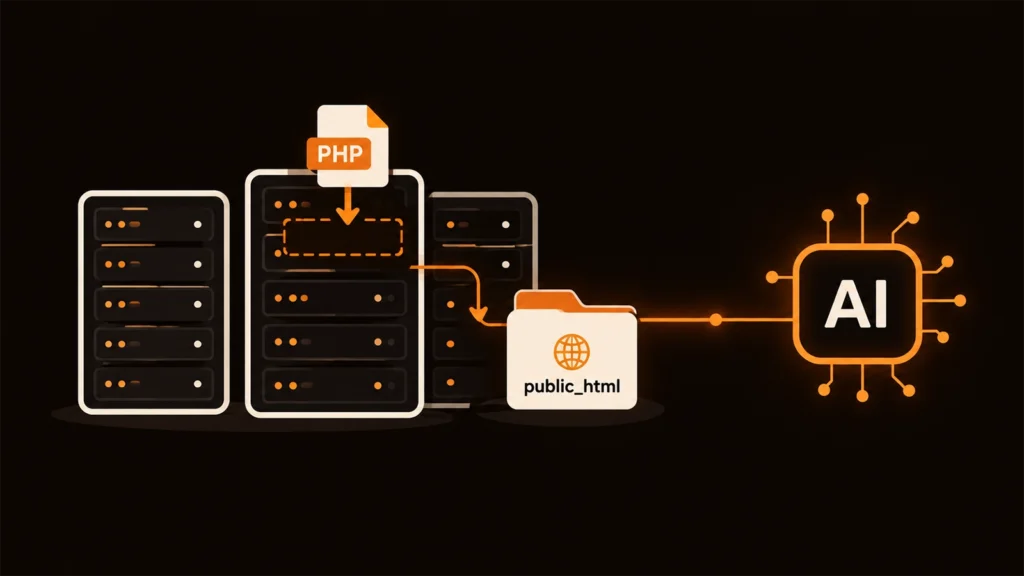
Most tutorials about connecting AI to a website start with “first, install Node.js” or “spin up a server”. That’s fine if you have a VPS. Most small business websites don’t. They live on shared hosting, Hostinger or a cPanel host, where you can’t install Node.js and nothing is allowed to keep running in the background.
Good news: you don’t need any of that to connect Claude AI to your site.
Why shared hosting is enough
When Claude uses a custom connector, it just sends an HTTPS request to a URL and reads the reply. Every time. Nothing has to stay running between requests.
A PHP file on shared hosting can answer those requests the same way it serves any other page. That’s the whole trick. Your host already runs PHP for your website, so it can run the connector too.
What to check first
There are only a few things your hosting needs:
- PHP 7.4 or newer (Hostinger and most cPanel hosts offer PHP 8.x)
- An SSL certificate, so the site loads on
https:// - Optional: a MySQL database and a
config.phpthat creates a$pdoconnection, if you want Claude to work with your data
Checking your PHP version
Hostinger: in hPanel, go to Advanced, then PHP Configuration. The first tab shows your version and lets you change it.
cPanel: look under Software for Select PHP Version (on some hosts it’s called MultiPHP Manager). Pick 8.1 or newer if you can.
A small thing we ran into on our own Hostinger account: the PHP sodium extension was switched off by default. Our connectors no longer depend on it, but if you’re running other PHP tools that do, it’s in the same PHP Configuration screen under Extensions.
Setting it up on Hostinger or cPanel
- Generate your connector with the Claude Bridge Custom PHP generator. On WordPress, use the WordPress plugin generator instead.
- Open File Manager. On Hostinger it’s under Websites, Manage, File Manager. On cPanel it’s in the Files section.
- Go into
public_htmland upload the PHP file. Keep the file name exactly as it is. - Open the connector URL in your browser to make sure it loads.
- In Claude, go to Settings, Connectors, Add custom connector, and paste the URL.
Snags you might hit
Claude can’t connect, but the URL opens fine in your browser. Some hosts run a firewall (often ModSecurity) that blocks requests it doesn’t recognise. Ask your host’s support to allow the connector file. They get this request a lot.
Changes don’t appear on the live site. This one catches everyone. Hostinger and many cPanel hosts cache pages. Clear the cache in hPanel’s Cache Manager, or in your cache plugin, and reload.
Database tools fail. Make sure config.php is in the same folder as the connector and really creates $pdo. If your site keeps its database details somewhere else, a two-line config.php that includes that file is enough.
What to ask for first
Once it’s connected, try something you can check yourself: “Read my PHP error log and tell me what’s been going wrong this week.” On a shared host, where the error log is buried three menus deep, that alone can save you ten minutes.
For the complete walkthrough, read how to connect Claude AI to a custom PHP website. When you’re ready, Claude Bridge has a free 7-day trial.